In my previous post, I mentioned that I “converted” a Python game made from PyGame module into Scratch project. In this post, I will introduce some key design issues when “converting” it to Scratch project. After all, there is not any convenient magic conversion. However, if we read through the Python code and utilize its ideas, it will be much easier for us to design a similar project in Scratch.
First, let me show the final effect of Star Pusher game in Scratch. Anyone intestested in it could play directly at this address: https://scratch.mit.edu/projects/887288480
Many levels are pretty tricky and involve some tips. If you want to take a look at the puzzle solutions, please visit the following videos.
Credit to Original Python Game
You could find the Star Pusher game written in Python PyGame module over here. As the page mentioned, “The level file can be downloaded from http://invpy.com/starPusherLevels.txt. The tiles can be downloaded from http://invpy.com/starPusherImages.zip“. Please note that .zip file contains all of the files, including Python source file, resouce images, and the starPusherLevels.txt, so you do not need to download starPusherLevels.txt separately if you download the .zip file.
The following list some key areas we need to play attention when converting the code.
Convert Map Info
The level fils contains the map information, including the positions of stars, destinations, map shape and layout, wall boundary, and player initial position etc. The difficulty of each puzzle is completely defined by the map information.
If we open the starPusherLevels.txt, we could find that each level’s map information is stored in a collection of characters and signs, like the following:

The left example shows two map information. If you look at the original Python file, you will notice that each sign or character represents different stuff on the map. “#” represents the boundary wall, “$” represents the star, “@” represents player, “.” represents the destination (it is called “selector” in the original project). The white space within the boundary of the “#” represents the floor, where the player and stars could move. The white space beyond the boundary of “#” represents the external grassland decoration, which is usually drawn with rocks and grass randomly and they will not affect the running of the game. When converting into Scratch project, we need to consider how to use a dffiferent format to store the map information.
In Scratch, it is not possible to read information from .txt file. We need to store one map into one list. If we have multiple maps, each map is mapped to one list, so that different map’s layout will not be mingled. Assuming I use the above map 1 and convert it to Scratch list, I will fill the insider white space with 0 which represents the floor, and fill the outside white space beyond the wall boundary with 1, which represents the decoration grassland. In this way, each list item gets the same length, which is easier for Scratch code to process. The final result will be like this:
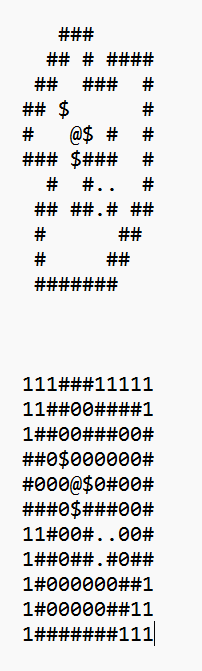
The first image is the original map info stored in .txt file. The second one is the converted text. I only need to copy each line of text into list and store it in the Scatch project.

Check Movement Validity
In the original PyGame project, all the star positions are stored in a 2D list. When moving the player and stars, the program will iterate the whole start list to see if the player moves to an invalid position such as positions of wall or star. In Scratch, we use the block “touching [sprite name]” to check if the player moves to a position overlapping with wall or star. If the player moves to wall position, the program needs to revert the player to previous position because overlapping with wall is invalid. If the player moves to one star’s position, it needs to further check if the star could be pushed or not. if the star could be pushed without overlapping with wall or other stars, both player and star could move to the new position correctly. However, if the star moves to the position of wall or other stars, both player and star need to cancel its movement because such an movement is invalid.

In the block “verify_position”, the program will check if player moves to a position overlapping with stars or walls, and then decide if the player and star could move forward to a new position or reverse back to the current position.
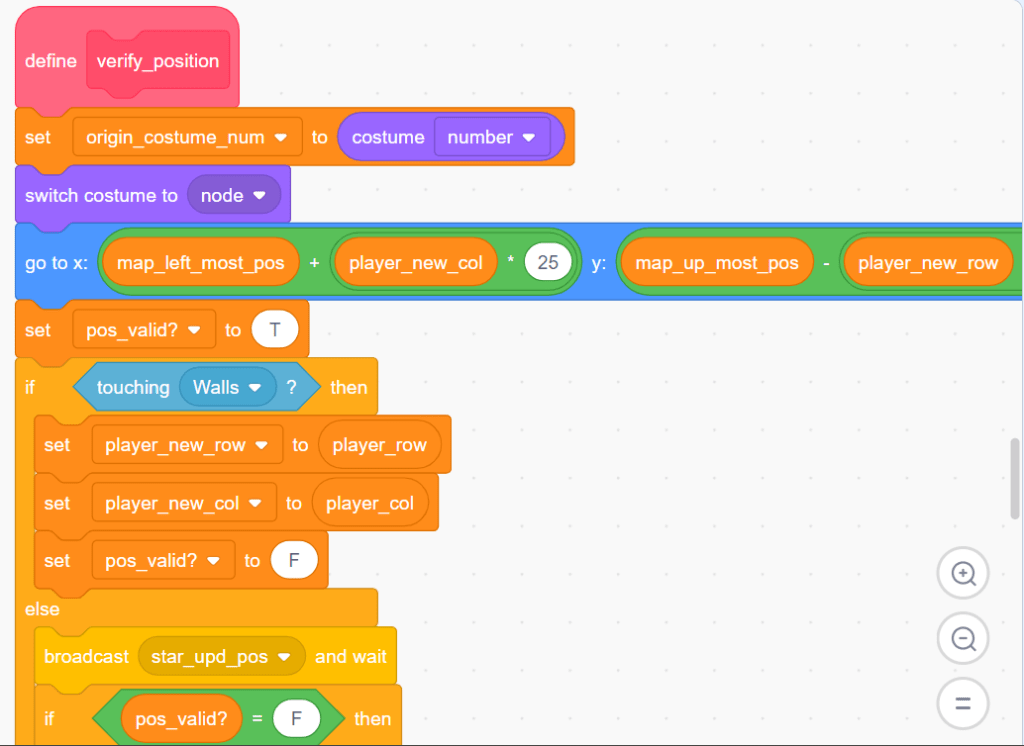
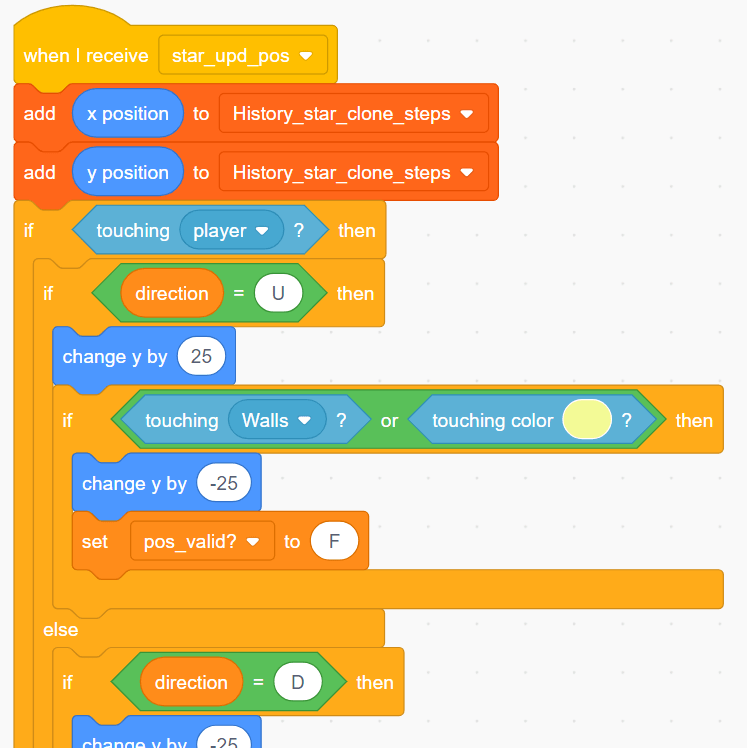
Each star clone will receive a message “star _upd_pos” sent from Player, and then each star clone will check if it touches the player. If it does, it will further check if it touches wall or other stars. Based on these checkings, the program will set variable pos_valid? to T or F. Player and all the star clones could decide if they need to settle in the new position or revert to the old position based on the value of variable pos_valid?.
Undo Operation
In the original PyGame project, the program does not provide undo functionality. That means, if you accidentally moves the player to an unwanted position, you could not undo it and you might have to restart that level. In Scratch project, you could undo at most 20 steps each time, so it is much more convenient.
To implement undo functionality, Scratch program stores each movement of player and star clones in separate lists. The lists record each historical step by recording x and y positions. When user presses “u” key to undo one step, the player and star clones will get their latest historical position stoed in the lists until there are no further undo steps.


The above is just a brief introduction of the design issues for the converted project. If you are intrested, just open the Scratch project to see the source code, and don’t forget to play the game to see how many levels you could break through! Happy coding!
Note: All the analysis articles are copyright products of http://www.thecodingfun.com. Anyone re-posting them should credit author and original source. Anyone using them for commercial purposes or translating them into other languages should notify TheCodingFun and get confirmation first. All Rights Reserved.
 The Coding Fun